Locator & Pages - JavaScript per preselezionare un Filtro
Questo articolo mostra il JavaScript utilizzato per preselezionare il primo Filtro di un Locator. Contiene il codice stesso, le istruzioni di configurazione e come abilitarlo. La preselezione non è permanente – l'utente può deselezionare per visualizzare l'intero set di Locations.
Cosa accadrà
Da questo:
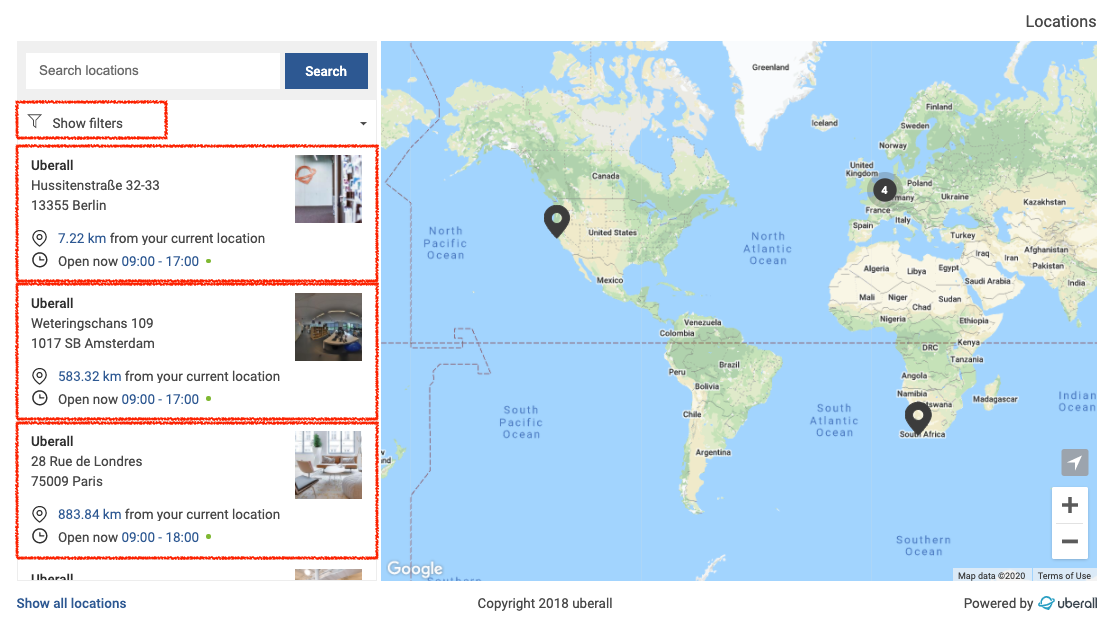
a questo:
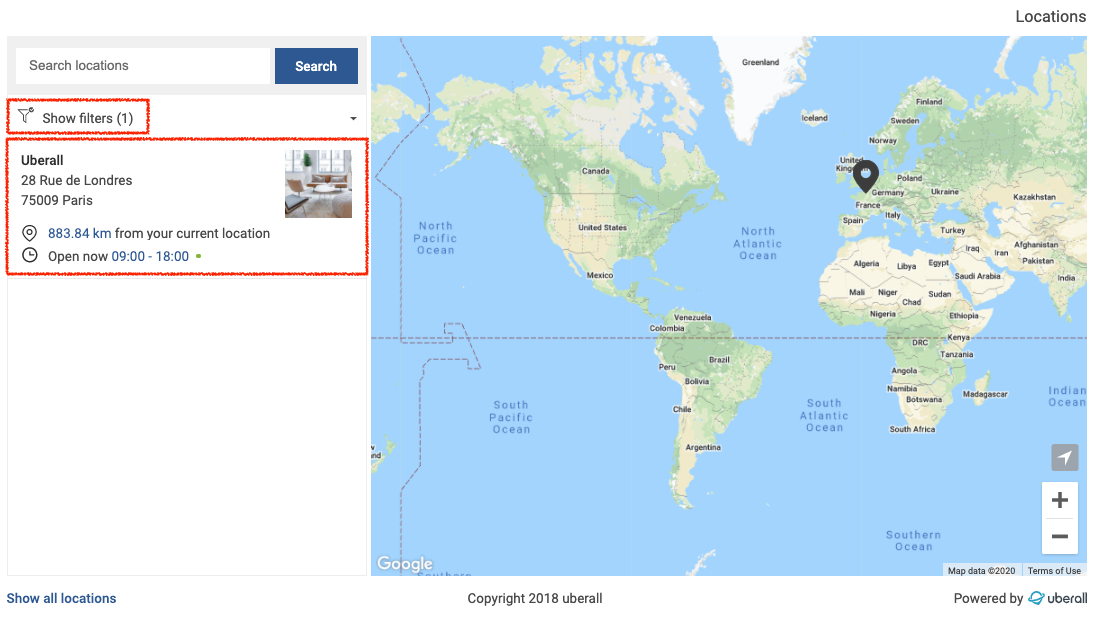
Come configurarlo
È necessario che il campo dati «services» sia compilato per le tue Locations per avere filtri da preselezionare. Scopri come farlo qui.
Una volta che il setup del filtro è pronto, lo script selezionerà il primo filtro con il seguente script implementato.
JavaScript
<script>

  //Unchecks all enabled filters on load
  function removeAllFilters(){
    var checkboxes = document.getElementsByClassName('ubsf_filters-select-checkbox');
    for (var i = 0; i < checkboxes.length; i++){
      if (checkboxes[i].hasChildNodes){
        checkboxes[i].click();
      }
    }
  }

  //Click on a filter and apply
  function presetFilter() {
    var checkbox = document.getElementsByClassName('ubsf_filters-select-checkbox')[0];
    Boolean(checkbox) && checkbox.click();
    var button = document.getElementsByClassName('ubsf_advanced-select-menu_apply-filters-button')[0];
    Boolean(button) && button.click();
  }

  //Click on filters toggle to show and load them
  var showFilters = setInterval(function() {
    if (Boolean(window.ubGoogleMapInstance)) {
      var toggle = document.getElementsByClassName('ubsf_filter-toggle')[0];
      Boolean(toggle) && toggle.click();
      removeAllFilters();
      clearInterval(showFilters);
    }
  }, 50);

  //If filters are shown and loaded, select one and hide the toggle
  //Sets the filter drop down to display:none and moves the locations list up to take its spot
  var selectFilter = setInterval(function() {
    if (document.getElementsByClassName('ubsf_filters-select-checkbox').length > 0) {
      presetFilter();
      clearInterval(selectFilter);
    }
  }, 50);

  //Untogles the filters toggle if shown
  if (document.getElementsByClassName('ubsf_filters-select-checkbox').length > 0) {
    var toggle = document.getElementsByClassName('ubsf_filter-toggle')[0];
    toggle.click();
  }

  //---------------------------------------------------------------------------//
  //If you want to show the filter box toggle, remove this section
  var hideFilterSection = setInterval(function() {
    var filterBox = document.getElementsByClassName('ubsf_filter-box')[0];
    if (filterBox && filterBox.style.display != "none"){
      filterBox.style.display = "none";

      var locationsList = document.getElementsByClassName('ubsf_locations-list')[0];
      locationsList.style.top = "66px";
      locationsList.style.height = "calc(100% - 66px)";
    }
  }, 50);
  //---------------------------------------------------------------------------//

  </script>
Come abilitarlo
Lo script deve essere salvato in un file .js e archiviato su un server pubblico, come questo:
https://s3.eu-central-1.amazonaws.com/uberall-downloads-prod/Preselect_1st_Filter.js
Quindi il file deve essere indicato come source dello script.
Punta a un file JavaScript esterno:
<script src="https://s3.eu-central-1.amazonaws.com/uberall-downloads-prod/Preselect_1st_Filter.js"></script>
Incorpora il tag script di cui sopra prima dello snippet Uberall Locator & Pages nel tuo codice HTML.
Esempi:
Con il codice diretto come source (possibile solo in fiddle per mostrare): https://jsfiddle.net/UberSven/ys3w0zgp/1/
Con il file .js come source – da condividere con i clienti: https://jsfiddle.net/UberSven/ys3w0zgp/4/
Scopri di più su Uberall Locator qui.