Facebook Connect Troubleshooting Guide
Having trouble finding and connecting your Facebook page to the platform or has your page been disconnected?
Table of Contents
Use this guide if:
- you can't find your Facebook page in the list when connecting a location,
- your page was connected before, but got disconnected, or
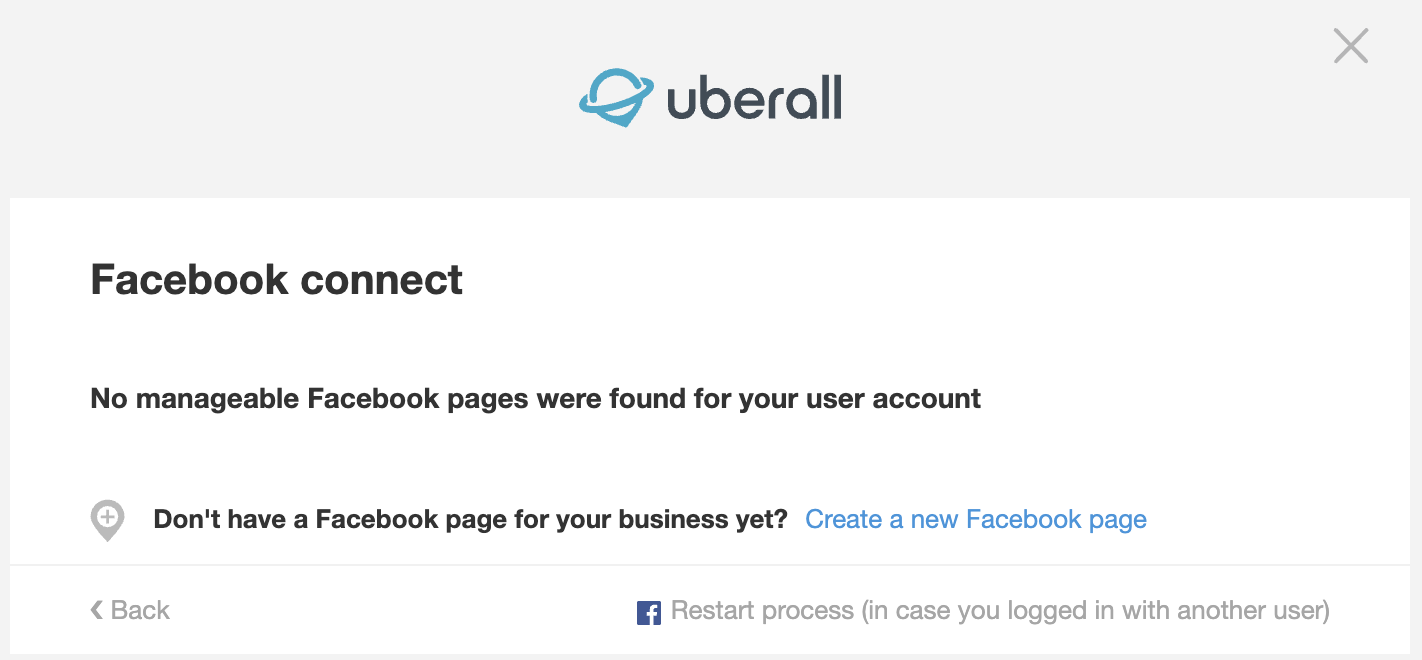
- you see an error message like this one:
Quick checklist
Go through the checks below. Each one links to the steps to fix it.
| Check | Where to find it |
|---|---|
| For all pages | |
| 1. The page has an address that matches your location | On the page |
| 2. The page is published | Page settings |
| 3. You have full control of the page | Page settings |
| 4. Two-factor authentication is on for your account | Your personal account settings |
| 5. Our Local Listing Connector has all permissions | Your personal account settings |
| 6. Your profile looks genuine | Your personal profile |
| If you manage your pages in Meta Business Suite | |
| 7. The page is added to your business account | Business settings |
| 8. You are an admin of the business account | Business settings |
| 9. The page is assigned to you with full control | Business settings |
| 10. Two-factor authentication is on for the whole business | Business settings |
Checks for all pages
1. The page has an address that matches your location
The address on your Facebook page must match the address of the location in the platform.
- On Facebook, click your profile photo at the top right, then See all profiles, and switch into the page.
- Open the page, go to About, then Contact info.
- Add or correct the address.
Using a brand page structure? Your brand (Main) page doesn't have an address, and can't have one. Only the location pages need an address.
2. The page is published
- Switch into the page (see check 1).
- Click the page's profile photo at the top right, then Settings & privacy > Settings.
- Go to Privacy > Facebook Page information.
If you see the option to deactivate or delete the page, it's published.
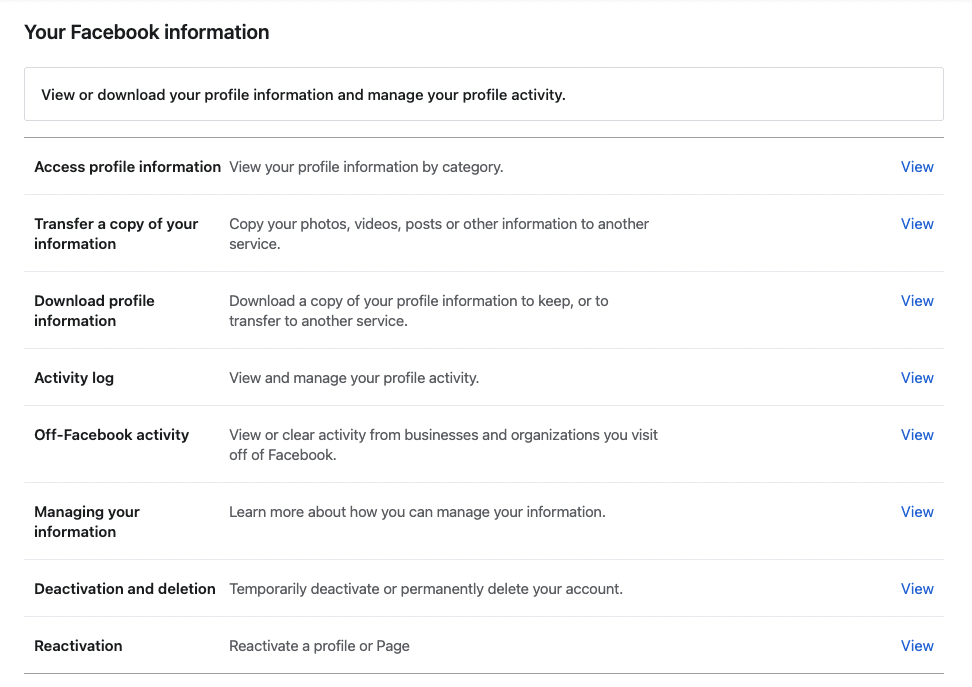
Can't find the page under "See all profiles"? It's probably deactivated. To reactivate it, go to your personal profile, then Settings & privacy > Settings > Privacy > Your Facebook information. Under Reactivation, click View, then Reactivate.
3. You have full control of the page
The person connecting the page must have full control (Facebook access). If you manage a brand page structure, you need full control of the brand page.
- Switch into the page, then go to Settings & privacy > Settings.
- Click New Pages Experience in the left menu.
- Under People with Facebook access, check that your account is listed. If not, ask an admin to add you with full control.
Important: the level of control is set when someone is added. If that person isn't part of your business account in Meta Business Suite, it can't be changed later. Remove them and add them again with full control.
4. Two-factor authentication is on for your account
Meta requires two-factor authentication for the Facebook account that connects to the platform. Without it, the connection can be removed.
- On your personal profile, go to Settings & privacy > Settings.
- Open Security and login (in newer versions, this is in the Accounts Center under Password and security).
- Under Two-factor authentication, choose a security method and turn it on.
5. Our Local Listing Connector has all permissions
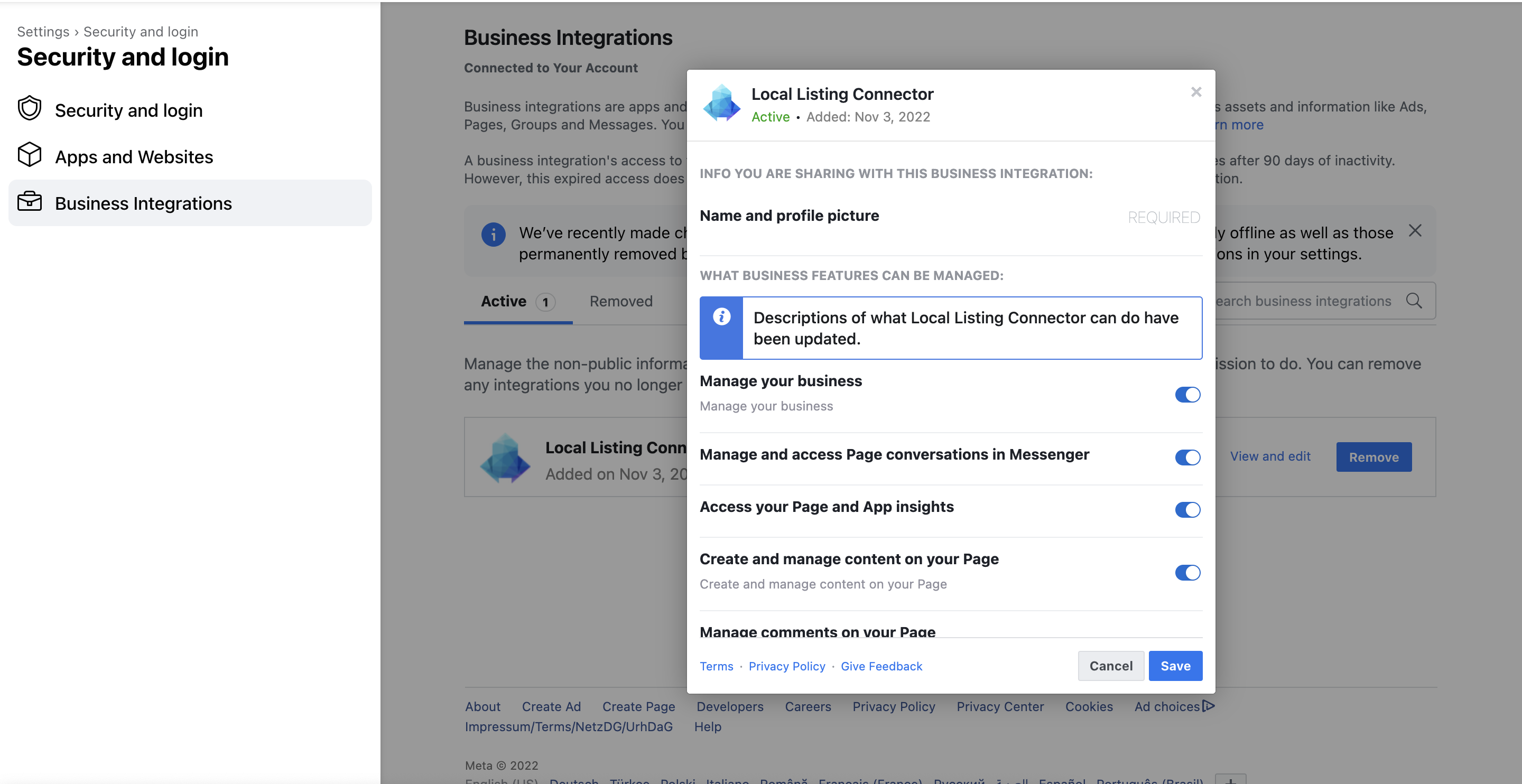
If your page was connected before, check that our integration can still update your page, retrieve insights and post.
- Log in with the Facebook account you used to connect the platform.
- Go to Settings & privacy > Settings > Business integrations.
- Check that Local Listing Connector is listed as active, then click View and edit.
- Make sure all permissions are turned on. If you see a list of pages with tick boxes, tick all of them, even pages you don't plan to connect.
6. Your profile looks genuine
Facebook regularly checks profiles for credibility. If you use a separate profile to connect the platform (for example, to keep your private information separate), add a profile picture and some basic information. Otherwise, Facebook may block the profile.
Extra checks if you use Meta Business Suite
All the settings below are in Meta Business Suite. Click the gear icon next to your business account name, or Settings at the bottom left.
7. The page is added to your business account
- In the settings, click Business assets. You'll see all pages in your business account.
- If your page isn't listed, click Add assets and select Facebook Page.
- Choose one of the options:
- Claim an existing Facebook Page: your business account becomes the owner of the page.
- Request to share a Facebook Page: the page appears in your business account, but the owner doesn't change. Use this if you connect the page on behalf of a client. Tick Facebook access so you get full control, then click Request access.
Don't have a business account yet? Create one here, or ask an admin of your existing business account to add you.
8. You are an admin of the business account
- In the settings, click People and select your name.
- Click Manage and set your business account role to Admin.
9. The page is assigned to you with full control
- In the settings, click People and select your name. You'll see the pages assigned to you.
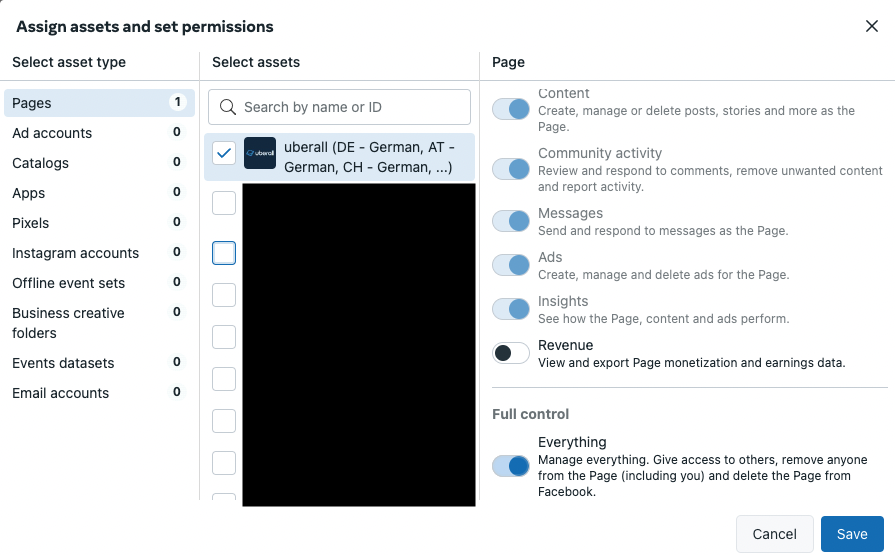
- If the page is missing, click Assign assets and select it.
- Turn on Full control (Everything).
To see everyone who has access to a page, go to Business assets, select the page, and click Page access.
10. Two-factor authentication is on for the whole business
Meta requires two-factor authentication for everyone in a business account.
- In the settings, click Business info, then Go to Business settings.
- Under Business options, set Two-factor authentication to Everyone.
Still not connecting?
If you've gone through all the checks and still can't connect, contact our Support team. Include the page name, the location ID in the platform, and a screenshot of any error message.