How to fix duplicate locations in Google Business Profile
Find out which duplicate scenario applies to you, how to merge, claim or remove duplicate profiles, and how to stop Google from wrongly marking locations as duplicates.
A duplicate is when Google has two profiles for the same business, or when Google thinks two different businesses are the same one. This article explains the four most common duplicate scenarios, how to recognize each one, and what to do. At the end, you'll find tips to prevent your locations from being marked as duplicates.
Which scenario applies to you?
| What you see | What it means | Go to |
|---|---|---|
| Two profiles for the same business are both verified and published on Google Maps. | Google didn't detect the duplicate. The two profiles need to be merged. | Scenario 1 |
| Two profiles for the same business are published on Google Maps, but one is unclaimed. | The unclaimed profile needs to be merged into the verified one. | Scenario 2 |
| A location shows the status Duplicate in your Google Business Profile account, and it really is the same business. | Either someone else owns the published profile, or you already manage it. | Scenario 3 |
| A location shows the status Duplicate in your Google Business Profile account, but it is a different business. | Google has wrongly marked it as a duplicate. | Scenario 4 |
Scenario 1: Both profiles are verified and published
What it means: Google didn't recognize that the two profiles are the same business, so both went through verification. This usually happens because the profiles had different information when they were created, for example a different phone number or category.
What to do: the two profiles need to be merged. Google can only merge them if one of them is unclaimed.
- If you own both profiles: remove your ownership from one of them, so it becomes unclaimed. Then follow Scenario 2.
- If you own only one profile: you first need ownership of both. Request access to the profile you don't control. Google will guide you through getting ownership from the current owner. Once you own both, follow step 1.
Scenario 2: Both profiles are published, but one is unclaimed
What it means: there is a verified profile and an unclaimed copy of it on Google Maps.
What to do: ask Google to merge the two profiles. You have two options:
- Option A (faster): open both profiles on Google Maps and copy their URLs. Then contact Google Business Profile Support and ask them to merge the profiles. Include both URLs.
- Option B (can take longer): open the unclaimed profile on Google Maps and click Suggest an edit > Close or remove > Duplicate of another place.
Scenario 3: The location is marked as "Duplicate" in your Google Business Profile account
Locations marked as Duplicate in your account are not published on Google Maps. Click the location to see Google's message. The message tells you which of the two cases below applies.
Case A: The published profile is owned by someone else
You see this message:

What it means: the published profile has been verified by a third party.
What to do:
- Click Request access and fill out the form to ask the current owner for access. You can also request access through the platform.
- Wait for the owner to respond. They can grant, deny or ignore your request.
- If they deny or ignore it, Google lets you request a code and verify the location yourself. Once verified, you have full ownership of the location.
Case B: You already manage the published profile
You see this message, telling you the location is already managed by you:

What it means: the duplicate is an extra copy of a location you already manage.
What to do: check that the location Google redirects you to is the correct one. If it is, you can remove the duplicate:
- In your location overview, tick the box next to the duplicate location.
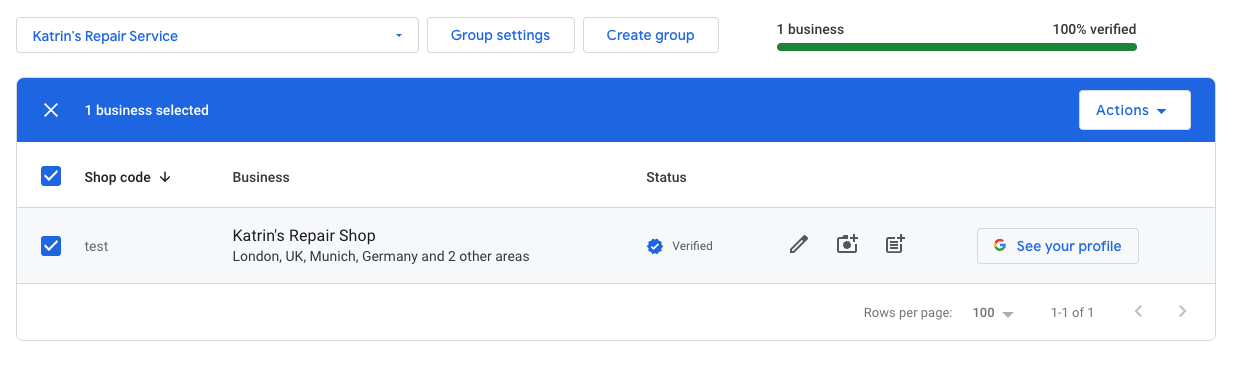
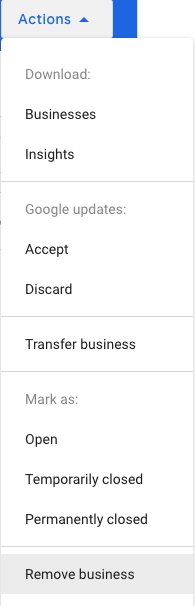
- Click Actions at the top right.

- Select Remove location.
Scenario 4: The location is marked as "Duplicate", but it is a different business
What it means: Google thinks your location is a duplicate of another published, verified location. This often happens when two businesses are very similar and close to each other.
What to do:
- Contact Google Business Profile Support and explain that the location is not a duplicate.
- Be ready to prove it. Google usually asks for a photo of the storefront showing the business is independent of the other one.
- If Google accepts your request, they reactivate the location. Both locations are then published on Google Maps again.
To avoid this happening again, follow the tips in the prevention section below.
How to prevent locations from being marked as duplicates
Google marks a location as a duplicate when it looks the same as, or very similar to, another location. This happens when the two share a lot of data, such as the name, address, primary category, phone number or website.
If you have two separate businesses close to each other, make their data as different as possible so Google recognizes them as separate. Where possible, give each location:
- A different primary category. This is the most important field for Google when detecting duplicates. For example, if one location is a factory and the other is a store, choose categories that show this.
- A different phone number. Two separate businesses should each have their own number.
- A different website, if the locations have their own landing pages.
- An address that is as distinct as possible. Adjust the map pin, or add a second address line (for example a unit or floor number).
