Why did my Facebook location or account get disconnected?
This article details possible explanations for Facebook connection invalidation
Table of Contents
Your Facebook location was connected successfully, but now it's disconnected. This usually happens because Facebook invalidated the connection. Below are the most common reasons, how to fix each one, and how to prevent it from happening again.
Common reasons for a disconnection
| What happened | Go to |
|---|---|
| Someone's access to the page was changed or removed | 1. Page access removed |
| Two-factor authentication was turned on | 2. Two-factor authentication |
| The Facebook password was changed | 3. Password change |
| Not all permissions were granted when connecting | 4. Missing permissions |
| The page or the connecting profile is no longer active | 5. Page or profile not active |
In all cases, you'll need to connect again once the cause is fixed. See the Facebook & Instagram Business Connect Guide.
1. Page access removed
The connection is linked to the Facebook account of the person who set it up. That person needs full control (Facebook access) of the page. If their access is removed or reduced, the connection breaks.
To fix it: reconnect with an account that has full control of the page.
To prevent it: connect with an account that will keep full control long term, ideally the business owner's, rather than an employee or agency who may leave.
2. Two-factor authentication
Meta requires two-factor authentication for the account that connects to the platform, and for everyone in your Meta Business Suite business account. If two-factor authentication is turned on after connecting, the connection is removed.
To fix it: make sure two-factor authentication is on, then connect again.
To prevent it: always turn on two-factor authentication before connecting.
3. Password change
If the password of the Facebook account that granted access is changed, the connection must be set up again. This is a Facebook security requirement, so the account owner confirms the access again.
To fix it: connect again with the same account.
4. Missing permissions
You may have connected successfully without granting all permissions. The connection then breaks as soon as the platform tries to update the page, publish a post or retrieve insights.
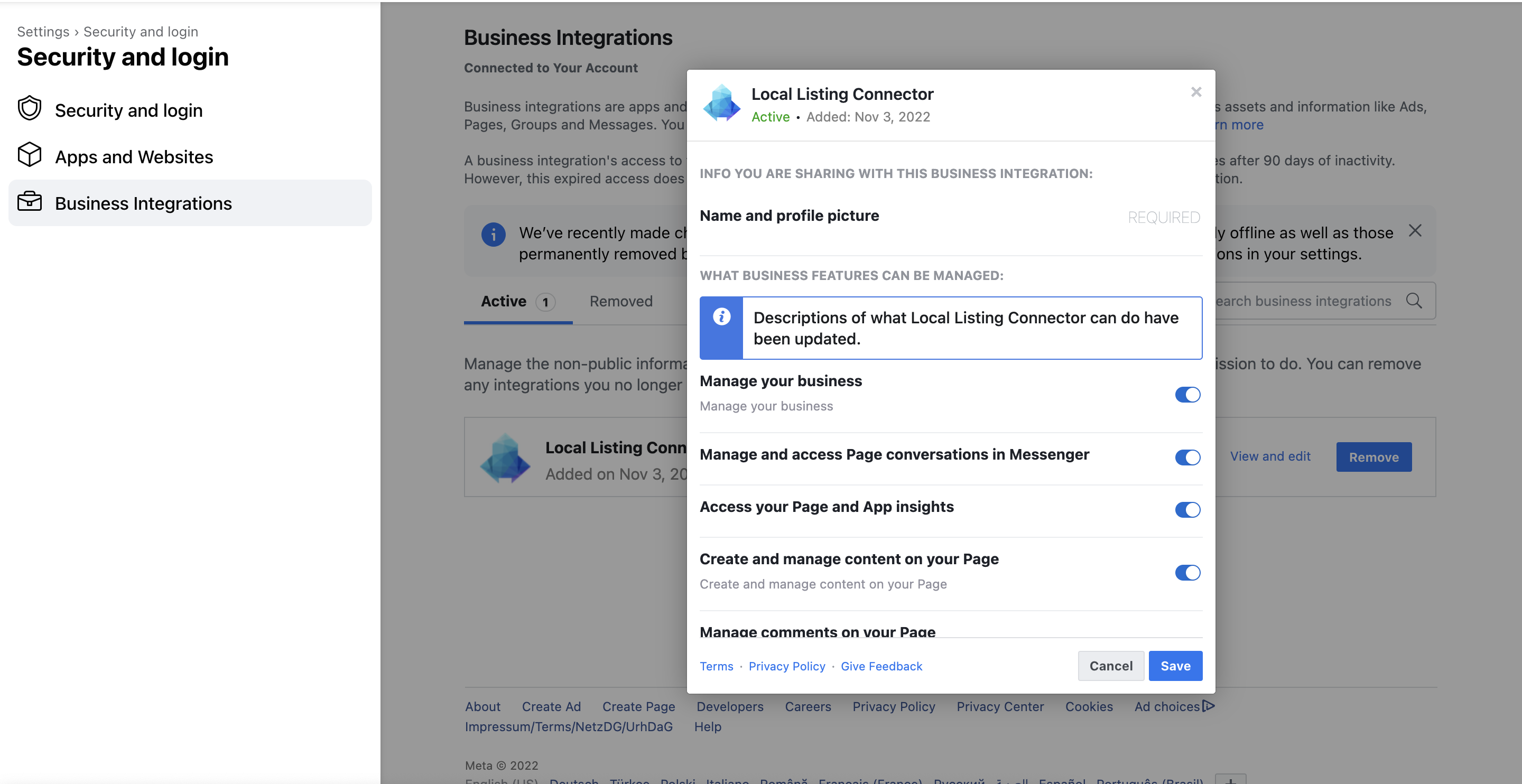
To fix it: check that our Local Listing Connector has all permissions, then connect again if needed.
Check if you have enabled our business integration with the required permissions to push updates, retrieve insights and/or post successfully to your Facebook page.
- From the Facebook account which you used to connect Uberall with your Facebook page, click the profile photo in the top right.
- Select Settings & Privacy, then click Settings.
- Click Security and login in the left side navigation.
- Click Business integrations on the left. You should then see our app listed as active business integrations.
- Click on View and edit to check if all permissions are enabled.
5. Page or profile not active
- The page was unpublished or deactivated. Republish or reactivate the page, then connect again.
- Facebook blocked the connecting profile. Facebook regularly checks profiles for credibility. If you use a separate profile to connect, make sure it has a profile picture and some basic information.
Still disconnected?
Go through the Facebook connect troubleshooting guide. If you still can't connect, contact our Support team with the page name, the location ID in the platform, and a screenshot of any error message.