Facebook location level connection guide
Table of Contents
For us to keep your location data accurate on Facebook, your locations need to be connected to the platform. If you manage many locations and don't need a central brand page for posting or replying to reviews, Location Level Connection is the fastest way to get them all linked in one flow.
Before you start
- The user establishing the connection to Facebook must be administrator of the Facebook page. This article will show you how to check your Page Role in Facebook.
- If your business already has existing location pages, these must be claimed through Facebook first. To learn about requesting access to Facebook pages, click here.
Step-By-Step Guide to Connect an individual location
Step 1: Connect
Go to the Listings tab of the location and click Connect on the Facebook widget to start.

Step 2: Start
A pop-up opens showing the details of the location you are about to connect.
Have your Facebook login details ready.
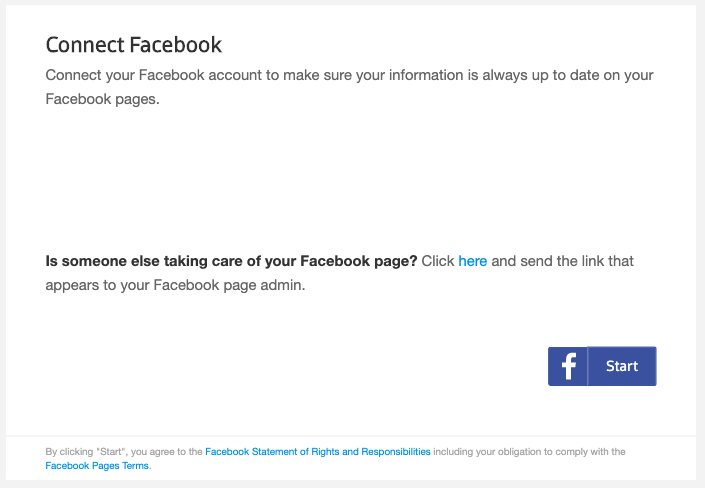
If someone else has the login details for your Facebook account: send them the link in the connect flow seen above. They sign in to that Facebook account and confirm the connection in a few clicks. Once they approve, the connection is complete.
Step 3: Sign in and Allow access
Log in with the Facebook account you manage the location with, or want to manage it with.
Grant the Local Listing Connector access to your Facebook account by clicking Allow. If you have allowed access before, this step is skipped.

Step 4: Select your location & Confirm
You will see all your locations in your Facebook account. Select the correct location and click Confirm.
This completes the Facebook connection and your location will be linked to your Facebook page.

Important notes
Matching logic: Before you connect, make sure your location information on the platform matches the Facebook location address data. Otherwise the system may not recognize the location.
Keep your access active : If you remove permissions, or the change your Facebook user's password, the connection is invalidated and must be set up again. Make sure the connecting user keeps their granted permissions so updates keep working.