Can Locator + Pages be implemented into Shopify?
How to use the Uberall Locator in Shopify
Table of Contents
For store finder pages that search engines and AI assistants can read, use the Uberall Store Finder app instead: Locator Upgrade - Shopify Steps. This article describes the older way, the snippet on a Shopify page.
This article shows how to embed the Uberall Locator + Pages widget inside of your Shopify pages. It also describes challenges, that might occur and how to overcome them.
Can Locator + Pages be implemented into Shopify?
The quick answer to this question is: Yes.
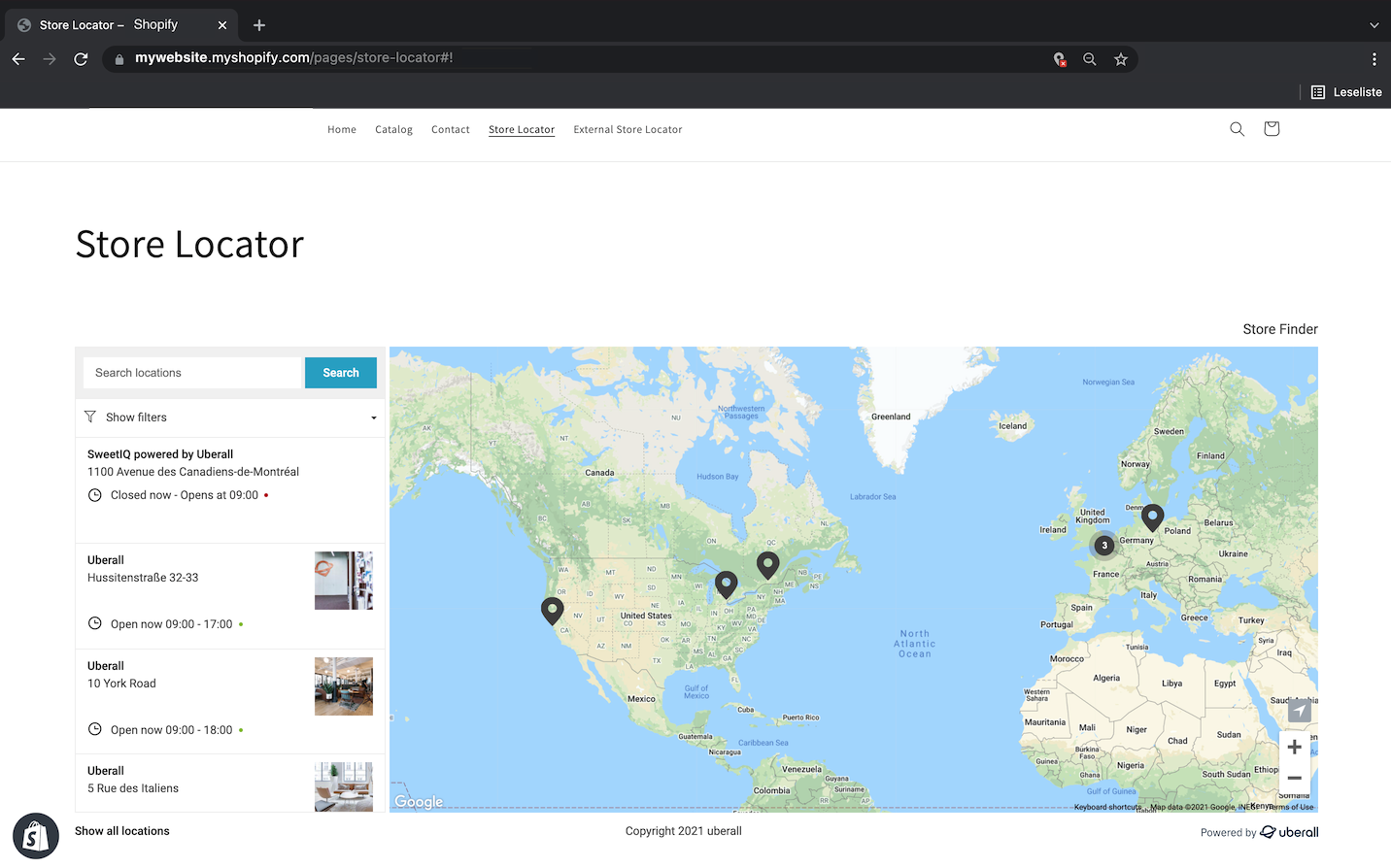
You can integrate the Uberall Locator snippet in one of your Shopify pages.
How to embed the widget into a Shopify page?
The basic integration rules apply - as described here.
You are able to edit the HTML code of any Shopify page.
How to edit the HTML?
When logged into your Shopify account, follow these steps:
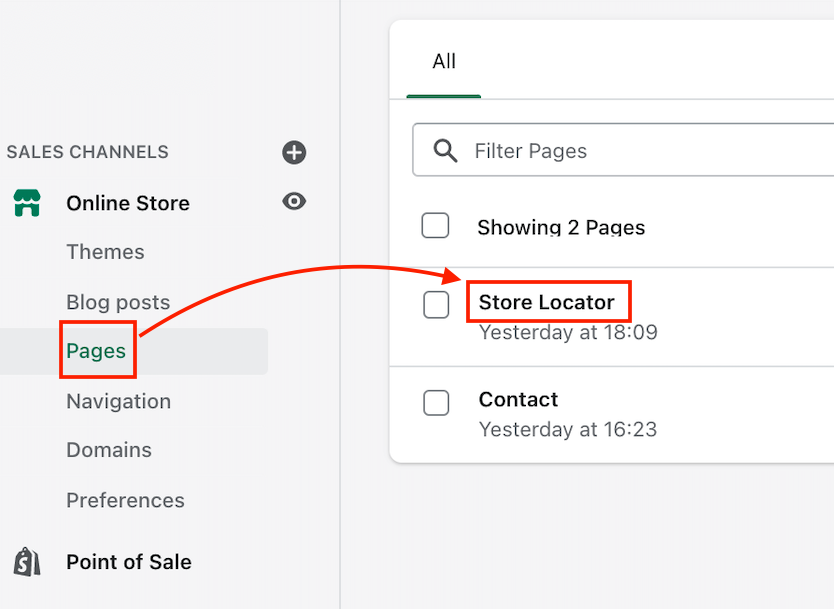
1. Go to "Pages" >> 2. Click the name of the page, of which you want to edit the HTML
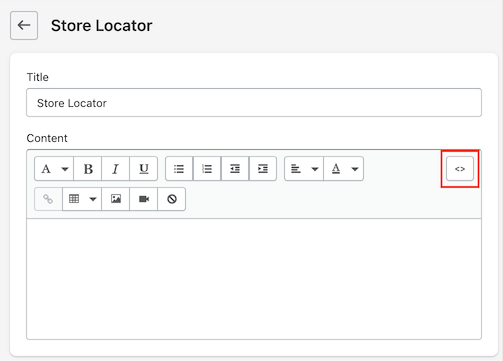
Next click the code icon "< >" in the top right corner - you'll be able to enter HTML code now
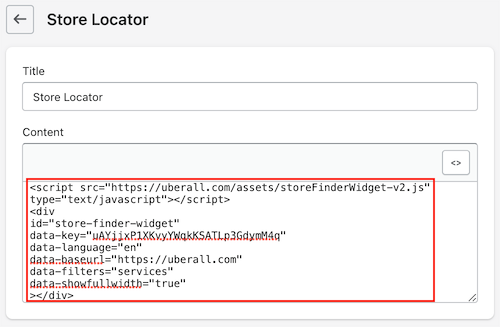
Now you can enter your Locator + Pages widget. Don't forget to save the changes.
Troubleshooting
How to edit the width of the Locator in Shopify
It's possible that the Locator be displayed in a section that is not wide enough for all of its content.
We experienced this issue and were able to fix it, by adjusting the base.css in Shopify.
- You can find this file in the "Themes" section of your Shopify account.
- Click the "Customize" button of the Theme you are using on the Locator page.
- There you will click on the three dots "..." at the top and click "{/} Edit code"
- A new tab will open in which you'll have to select the "Assets" folder - the first fill should be the "base.css"
- In that file you'd have to find the "@media screen" section.
- Edit the width and max-width to suit your layout.
read next: How to index pages of Locator & Pages